Special Characters panel examples
Special Characters panel examples
To see this panel, press and hold lower-case or upper-case letters, or any of these: $ ! ? % . - + \ ' " < > =
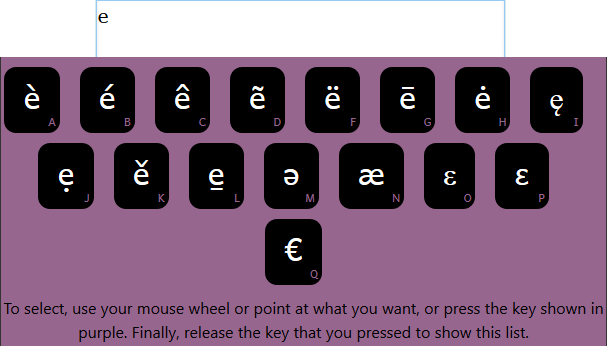
Example 1 - lower-case e
The e key was pressed and held down. Related lower-case letters appear.
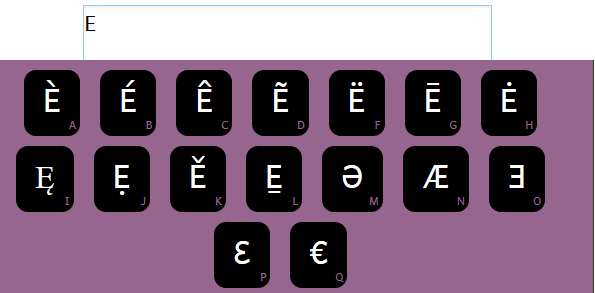
Example 2 - upper-case E
The Shift+e keys were pressed and held down. Related upper-case letters appear.
Example 3 - a symbol
The $ key was pressed and held down. Related symbols appear.

Important
- If the Special Character (LongPress) panel cannot find a special character that matches the key you pressed, you may inadvertently type many instances of that letter in the text box. You may need to delete them.
This can happen more often with non-English keyboards.