Install aeneas
This page describes how to install aeneas on a Windows computer for use with Bloom.
When you record an entire text box at once, Bloom can automatically split the recording into sentence-sized chunks. To do this, Bloom uses an extra program called aeneas. Aeneas is a free software package, but you need to install it on your computer to use it.
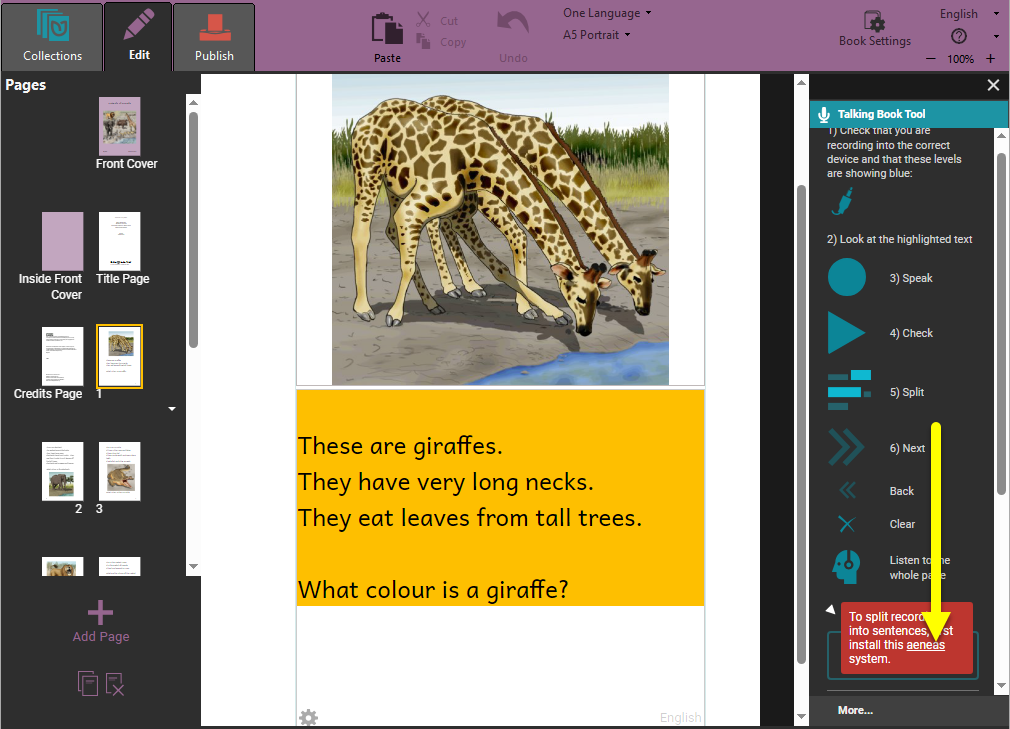
If you do not have aeneas installed on your computer, Bloom will display a warning in the lower portion of the Talking Book tool controls when you try to split a recording:
To split recordings into sentences, first install the aeneas system.
-
Click the link under “aeneas” in the Talking Book Tool’s warning box, or navigate to this webpage to download the aeneas software: https://github.com/sillsdev/aeneas-installer/releases/tag/v1.7.3
-
Click the
aeneas-windows-setup-1.7.3.exelink to download the software.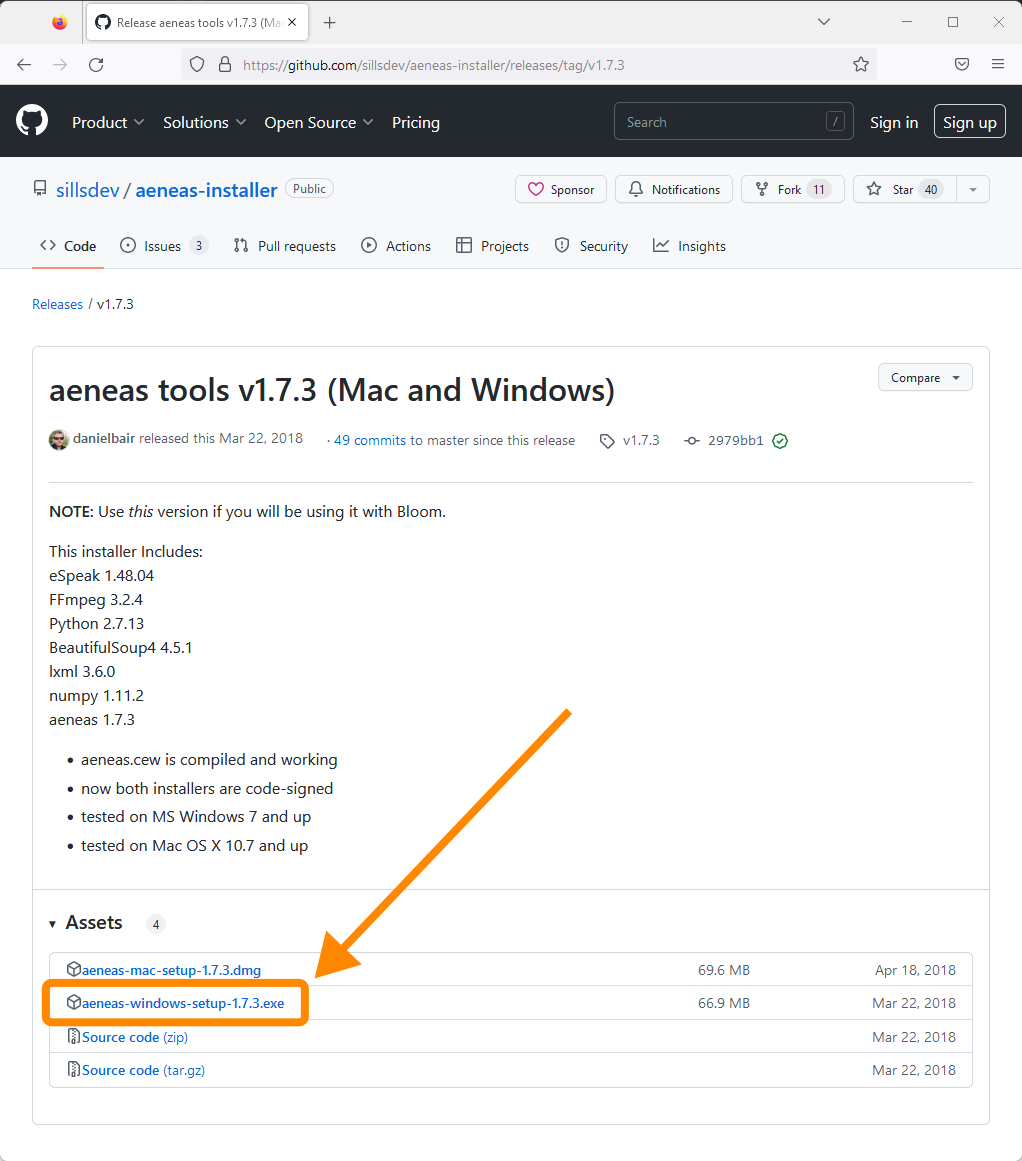
-
Find the downloaded
aeneas-windows-setup-1.7.3.exeinstaller program (probably in the Downloads folder) and double-click it to launch the software installer. -
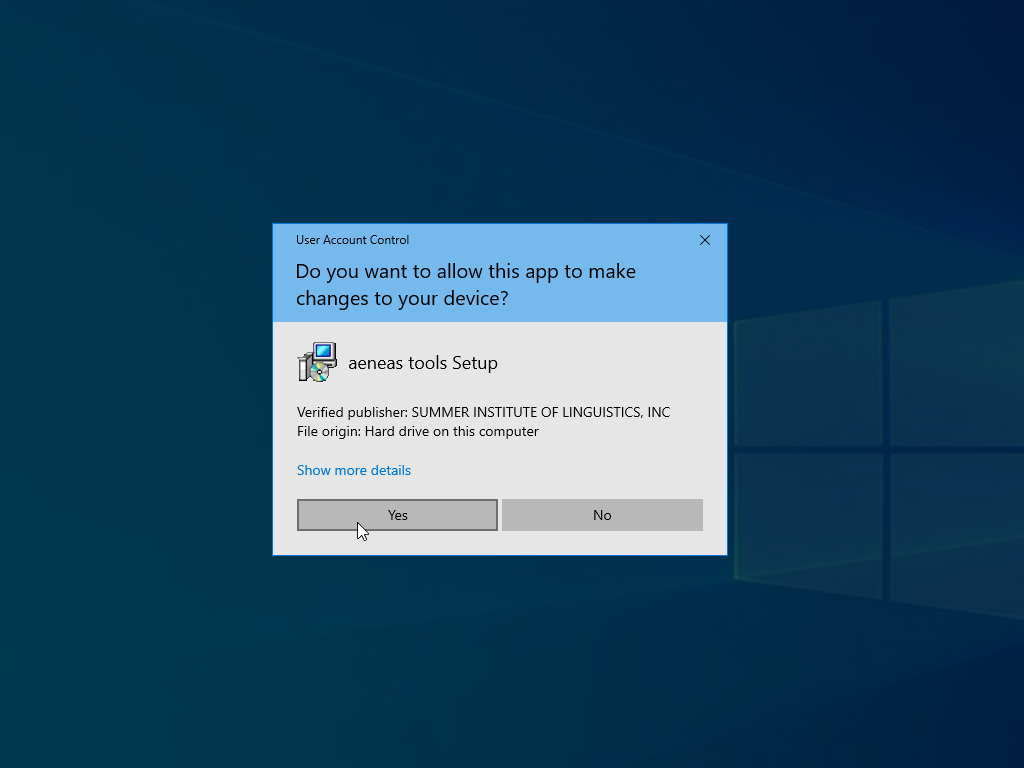
Windows will show you a User Account Control window, asking whether you want to allow the app to make changes to your device. Click Yes.
-
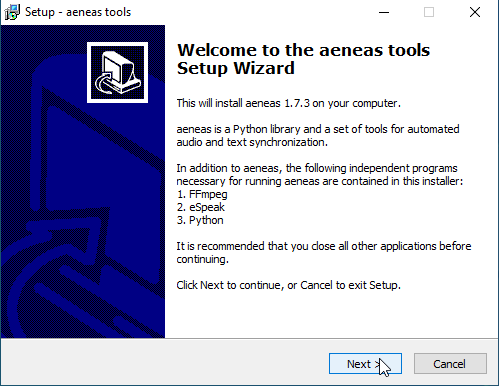
Click Next to follow the steps of the setup wizard. Do not make any changes to the default installation settings unless you are sure what you are doing.
-
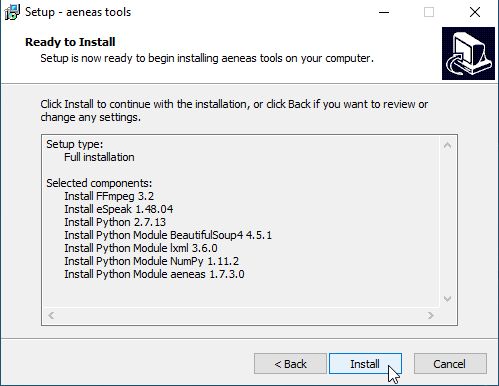
When you reach the “Ready to Install” screen, click Install. You will see a number of installation status screens:
-
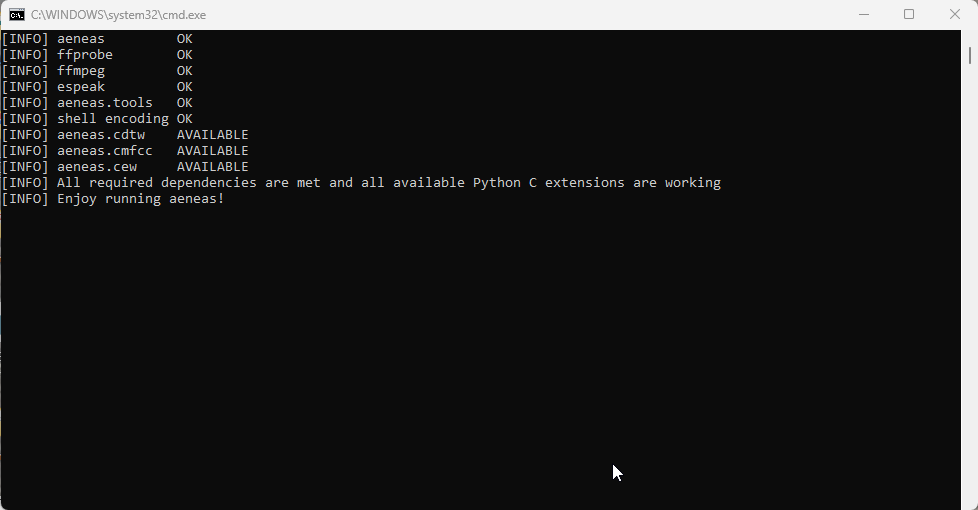
Including some in the Windows command line:
-
-
Eventually, you will see a “Completing the aeneas tools Setup Wizard” screen. Click
Finish.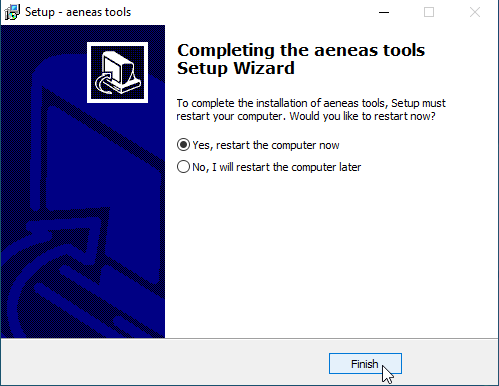
-
Restart your computer.
Now you can record an entire text box in Bloom, and let Bloom automatically split the recording into sentences.