Bloom Is Page-Oriented
Add a Page to a Book
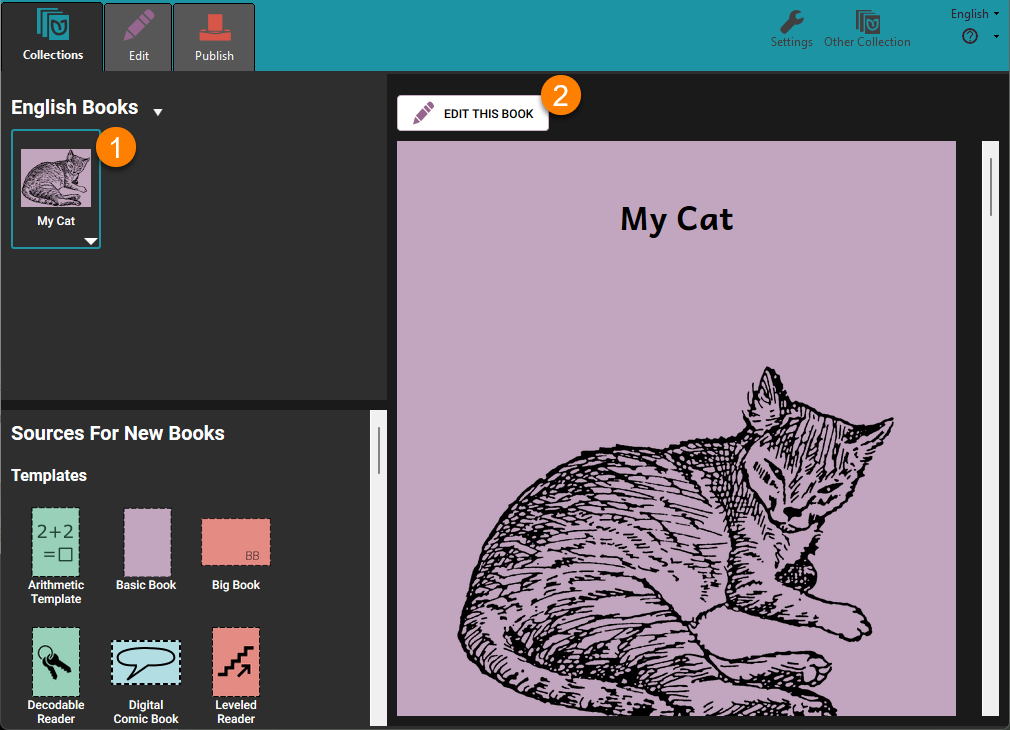
To add a page to your book, you must be in Edit mode.
In the Collections view:
-
Select the book you want to edit on the left-hand pane.
-
Click
Edit this bookin the right-hand pane.
Alternately, you can double-click the thumbnail image of the book in the Collection pane.
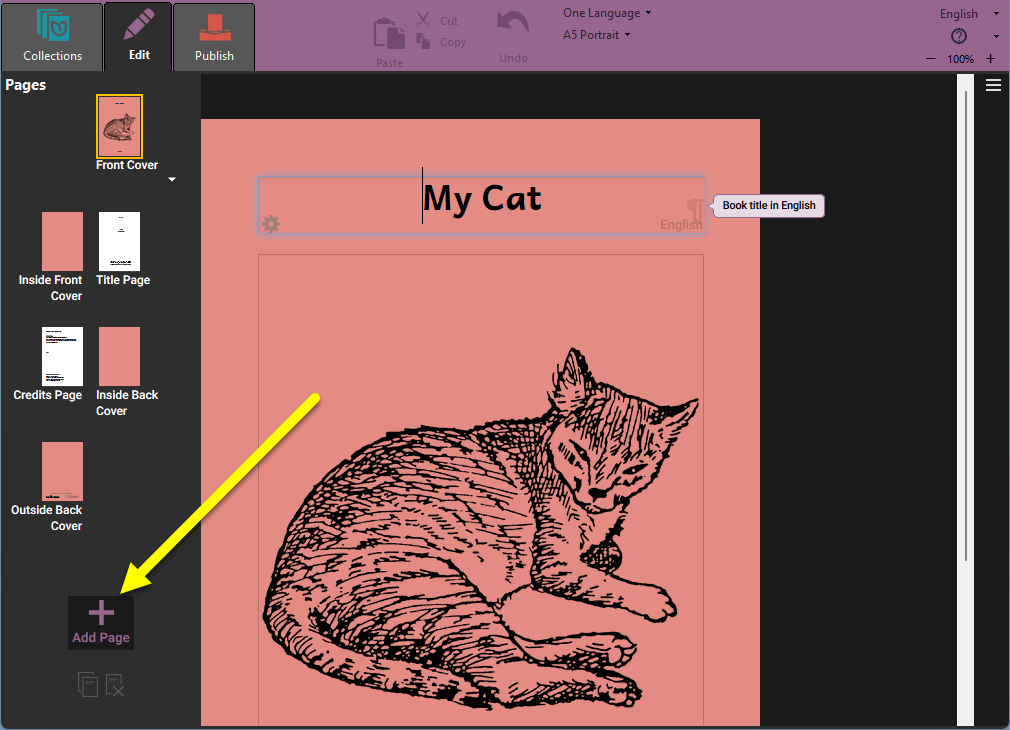
In the Edit view:
- Click the
+ Add Pagebutton at the bottom of the thumbnails on the left side of the screen.
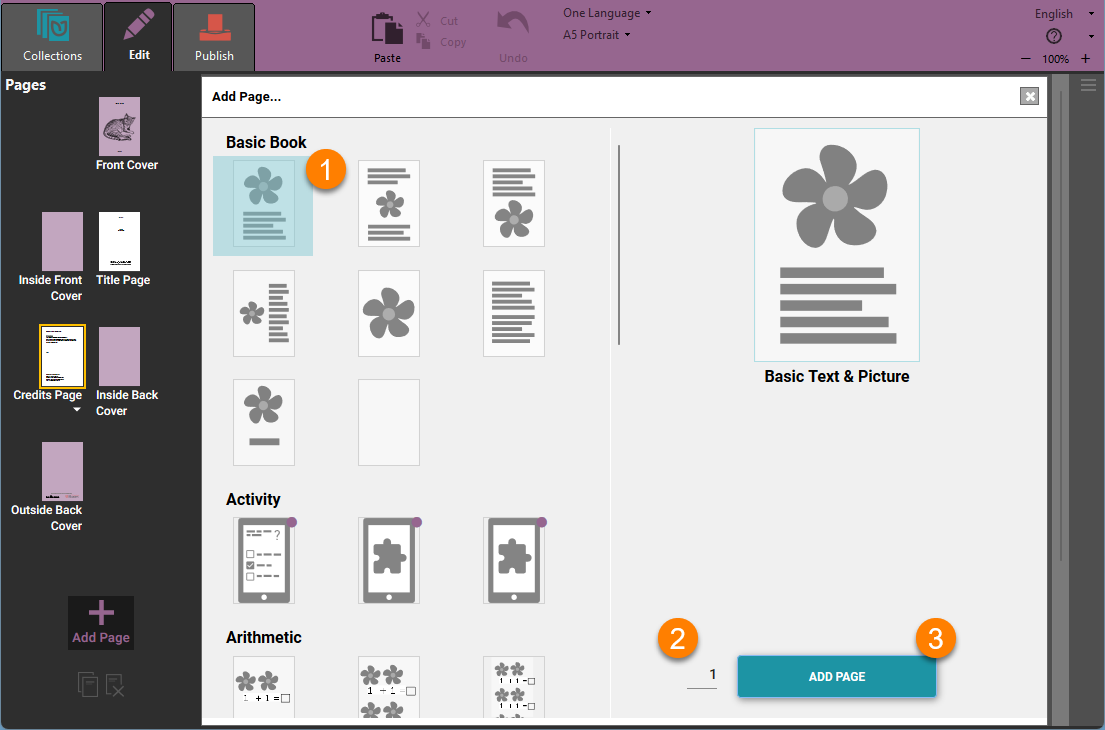
Next, Bloom will display the Add Page... dialog box with a choice of page layouts.
-
Click on a page layout in the left-hand side of the dialog box to select it.
-
Put the number of pages you want to insert into the number box (optional).
-
Click
ADD PAGE.
The first time you add a page to your book, Bloom places it just after the Credits Page. When you add more pages, Bloom puts them just after the currently selected page.
Reorder a Page
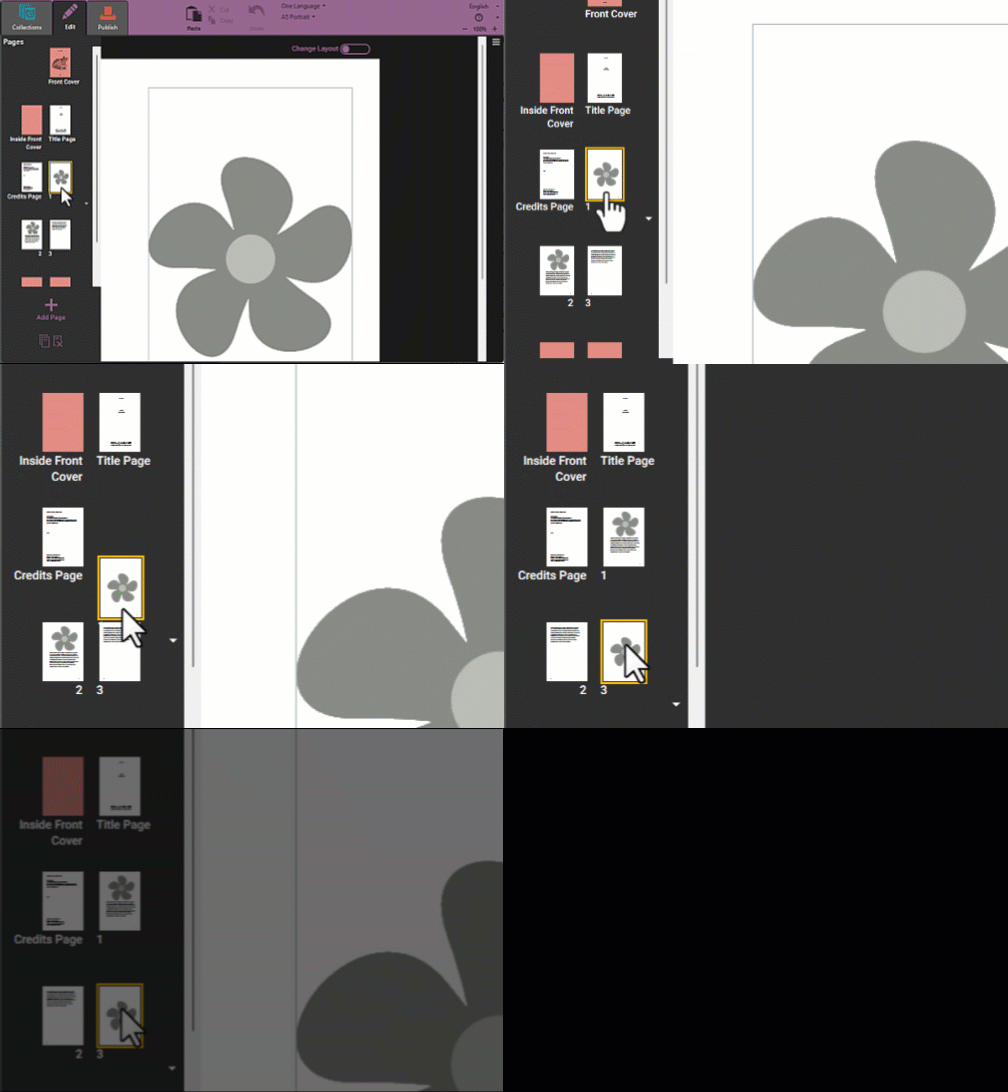
You can reorder a page by clicking and dragging its thumbnail icon in the Pages pane.
Duplicate a Page
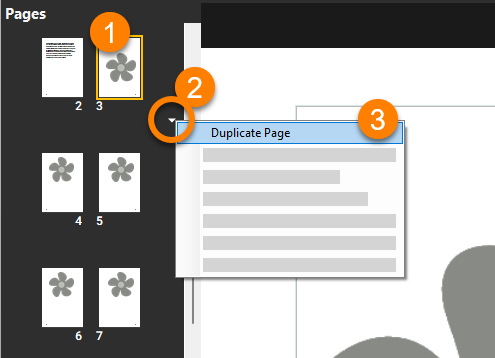
Sometimes you may want to duplicate a page. Perhaps it has a picture that you want to use on another page, or you have changed the formatting or layout of the page and want to use the same kind of page again.
-
Click the thumbnail image of the page you want to remove.
-
Click the small triangle below the page.
noteYou can also right-click on the page to show the menu.
-
Choose
Duplicate Pagefrom the small menu that appears.
Copy and Paste Pages
You can also duplicate a page by copying and pasting it.
-
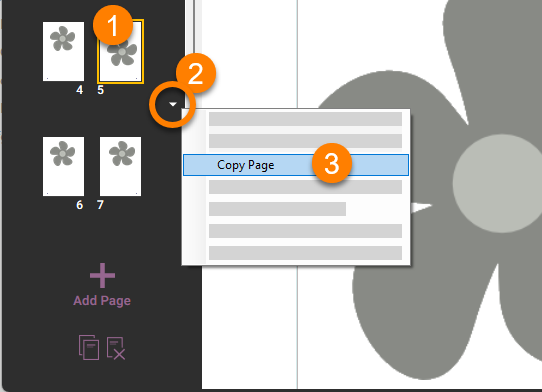
Click the thumbnail image of the page you want to copy.
-
**Click the small triangle below the page to invoke the context menu. (**You can also right-click on the page to show the menu.)
-
Select
Copy Pagefrom the small menu that appears. -
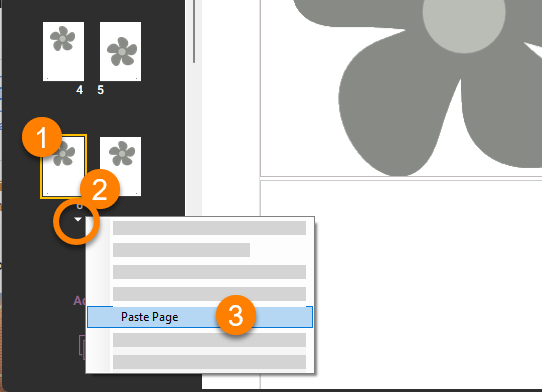
Select another page in your book. The page you copied will be pasted after this page.
-
Click the small triangle below the page, or right-click the page.
-
Select
Paste Pagefrom the small menu that appears.
Copy and Paste Pages to a Different Book
You can copy a page from one book using this method:
-
Copy the page
-
Open a different book
-
Paste the page into the other book.
Remove a Page
-
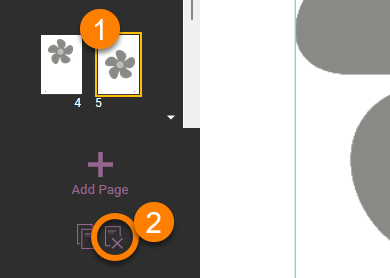
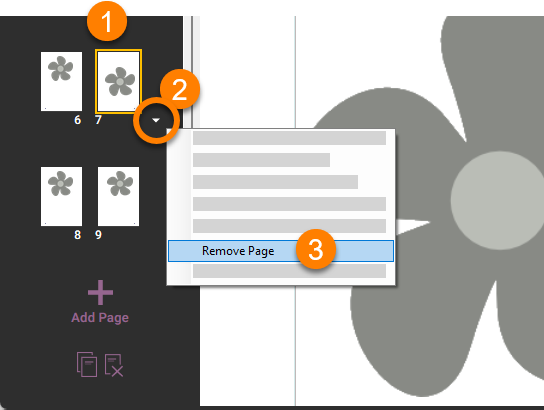
Select the page you want to remove from the list of pages.
-
Click the
Remove Pageicon in the lower left-hand part of your screen.
Alternately, you can use the page’s context menu:
-
Click the thumbnail image of the page you want to remove.
-
Click the small triangle below the page to invoke the context menu. You can also right-click on the page to show the menu.
-
Choose
Remove Pagefrom the small menu that appears.
Choose a Different Page Layout
Sometimes you may want to choose a different layout for your page. Maybe you chose a layout with text above a picture, but now you want the text to appear below the picture.
Changing the layout of a page can cause content to be lost. It's best to try this first on a copy of the page you want to change.
To choose a different page layout for the selected page:
-
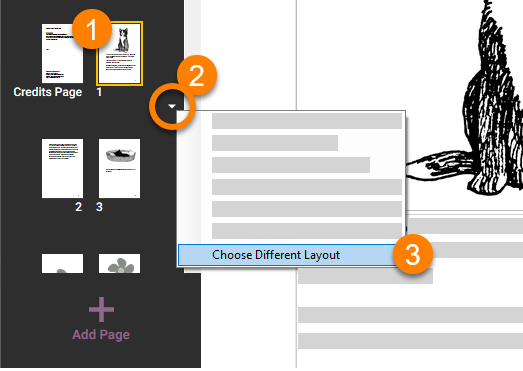
Click the thumbnail image of the page whose layout you want to change.
-
Click the small triangle below the page to invoke the context menu. You can also right-click on the page to show the menu.
-
Select
Choose Different Layout. Bloom will show you the page layout chooser. -
Choose the layout you want.
Bloom lets you customize your page layout beyond the templates provided in the page layout chooser. See Page Layouts in Bloom to learn more.