Publish to PDF
Publishing your Bloom book as a PDF file allows you to easily print or share your book.
Digital Publishing: Please note that a PDF cannot contain a video, only a still image. So, if your work contains videos, consider digital publishing options like BloomPUB or ePUB.
Steps to Publish Your Book as a PDF file
-
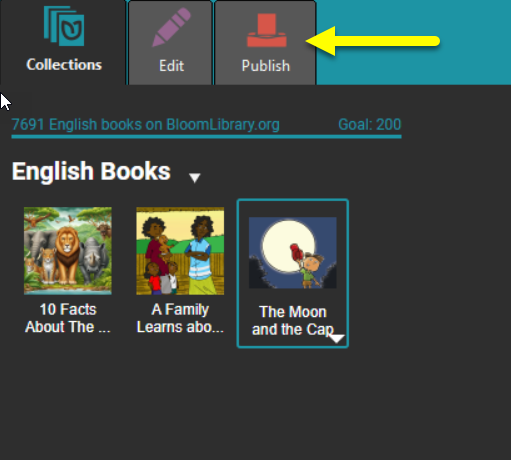
In the Collections tab, click the book you want to publish. Then, click the Publish tab.
-
In the left pane, choose PDF & Print

-
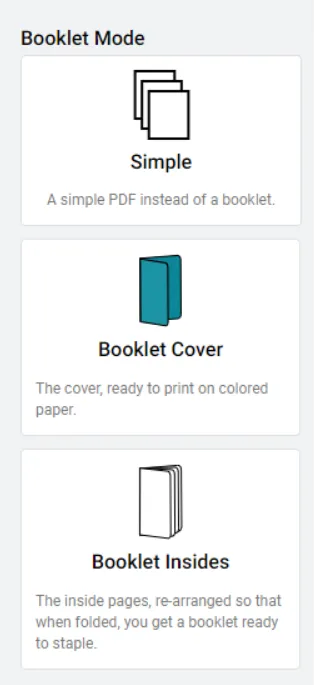
In the right pane, choose one of these options:
-
Simple: Creates a simple PDF file of the entire book.
-
Booklet Cover: Creates a PDF of only the cover pages. This is useful if you want to print the cover separately — for instance, on heavier-stock paper.
-
Booklet Insides: Creates a PDF of the inside pages, arranged for easy booklet folding and stapling.
If the page size and orientation don’t allow a booklet format, the Booklet Cover and Booklet Insides options will not be available.
-
-
In the center pane, a preview of the PDF file will appear.
noteThe preview pane includes a number of toolbar controls:
-
Click Contents to hide or show the table of contents (if your book has a table of contents).
-
Click the minus or plus signs to zoom out or zoom in on the displayed page.(You can also use the keyboard shortcuts Ctrl + Minus or Ctrl + Plus.)
-
Click Fill width to make the pages fill the center pane. (Use Ctrl + \ as a shortcut.)
-
Edit the page number in the box. Use Ctrl + Alt + G to select and edit the page number.
-
Click Page view and choose to display one page or two pages. For two pages, you can show the cover page separately.
-
Click to open a search box and type the word(s) you want to find.

-
-
Prepare for Printshop (Optional; requires Bloom Enterprise) If you have a Bloom Enterprise subscription, you can take advantage of additional features to prepare your book for professional printing
- Full Bleed: This adds a bleed box to the pages. (Note that this is available only if your book was created using the
Paper Comic Booktemplate, or your Enterprise subscription includes Full Bleed.) - CMYK: Convert the color space of your book from RGB to CMYK. The current options are
None(which keeps the colors in RGB) orU.S. Web Coated (SWOP) v2.
- Full Bleed: This adds a bleed box to the pages. (Note that this is available only if your book was created using the
-
Save the file or print it directly.
Related Topics
- Publish tab tasks overview
- Save PDF file