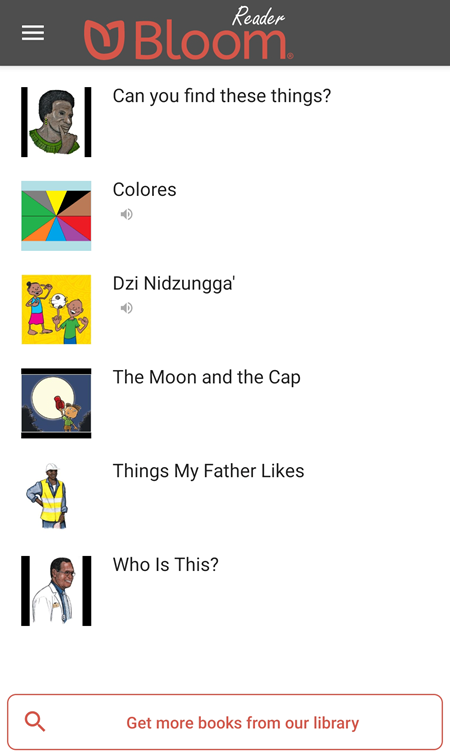
Read a Book in Bloom Reader
Read a Book in Bloom Reader
Reading a book in Bloom Reader is similar to using other reading apps.
-
Download the book(s) that you want to read in Bloom Reader.
tipTo download additional books, see Get Books in Bloom Reader.
-
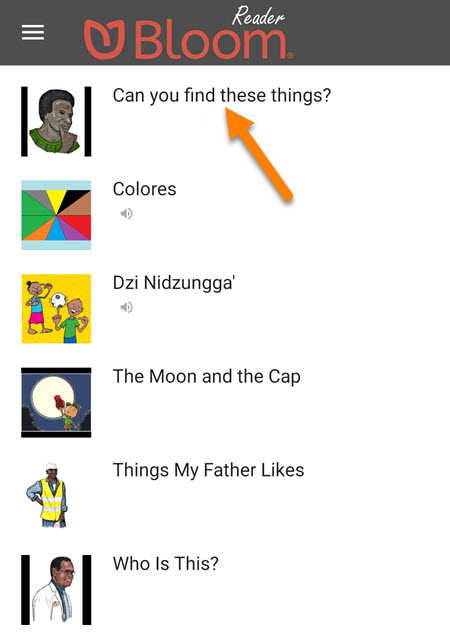
Tap the thumbnail or title of the book that you want to read:
-
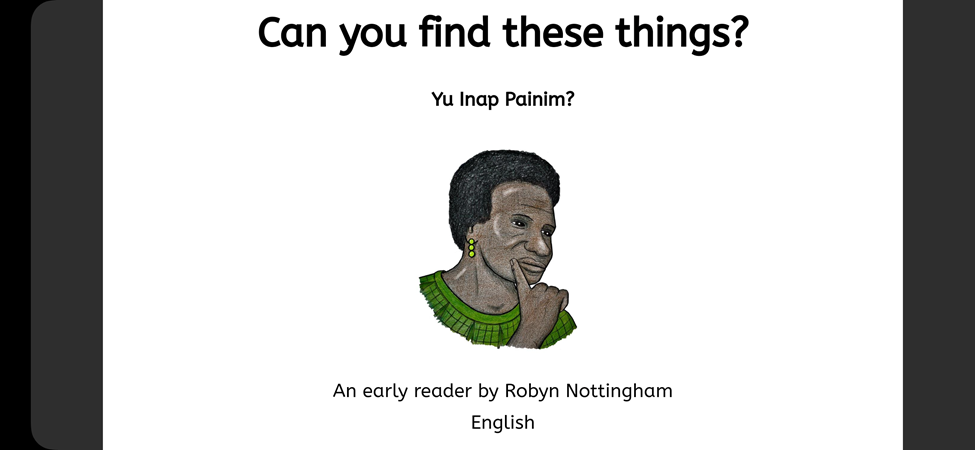
The book will rotate automatically (if necessary) and open in full-screen mode:
Navigate Pages
-
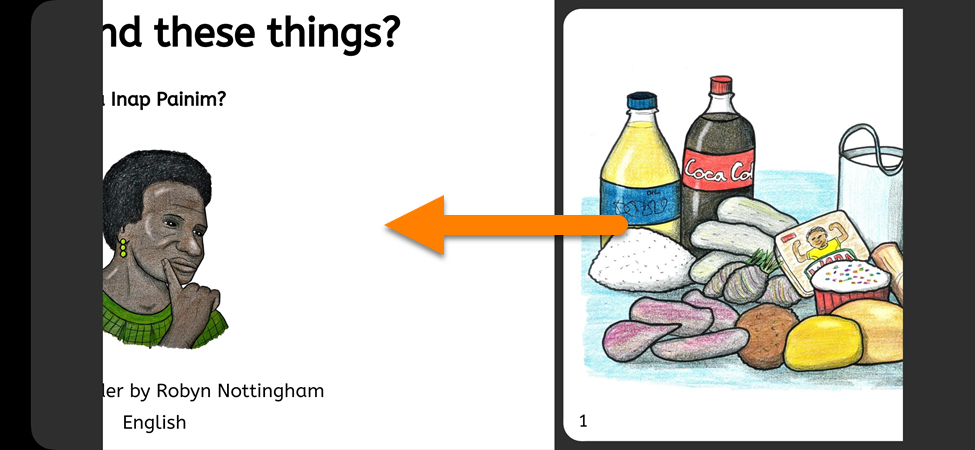
Swipe to the right to go to the next page:
-
Swipe to the left to go to the previous page:
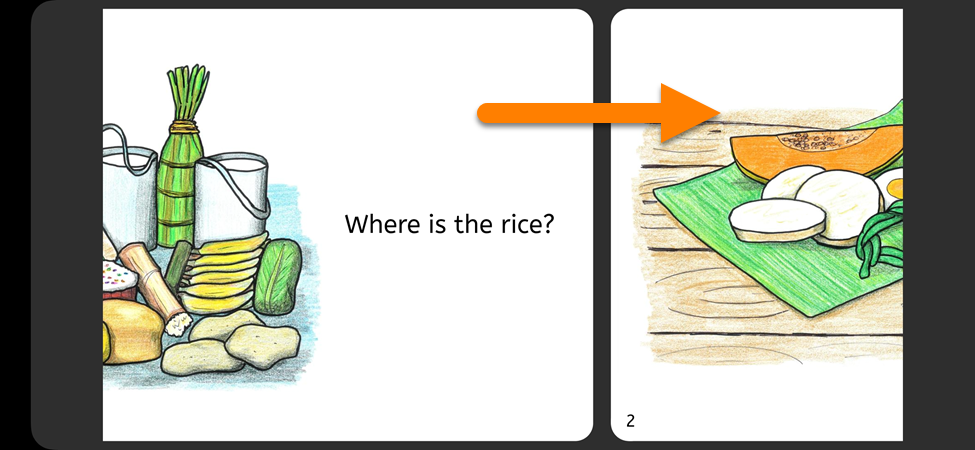
Note: For Right-to-Left languages, the swipe direction is reversed.
Move Between Pages Quickly
You can also change between multiple pages at once:
-
Tap on a page in the book:
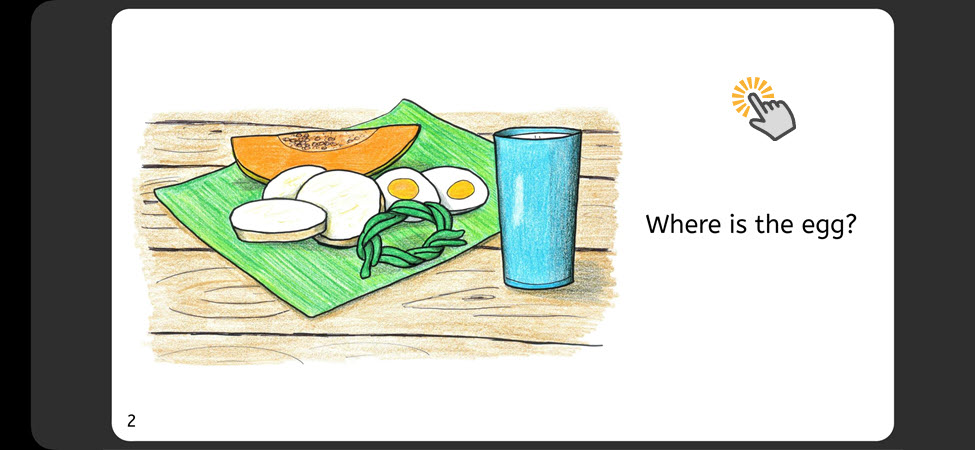
-
A slider will appear below the page:
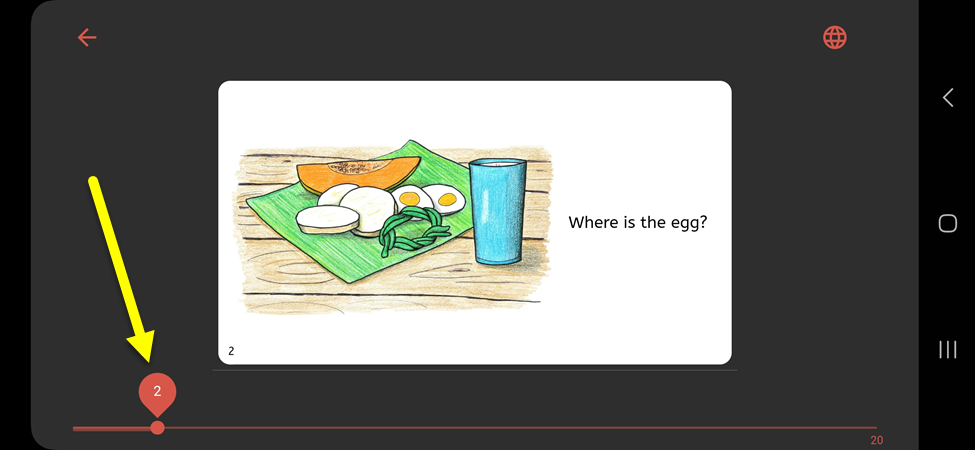
-
Move the slider to the right/left to navigate to a different page:
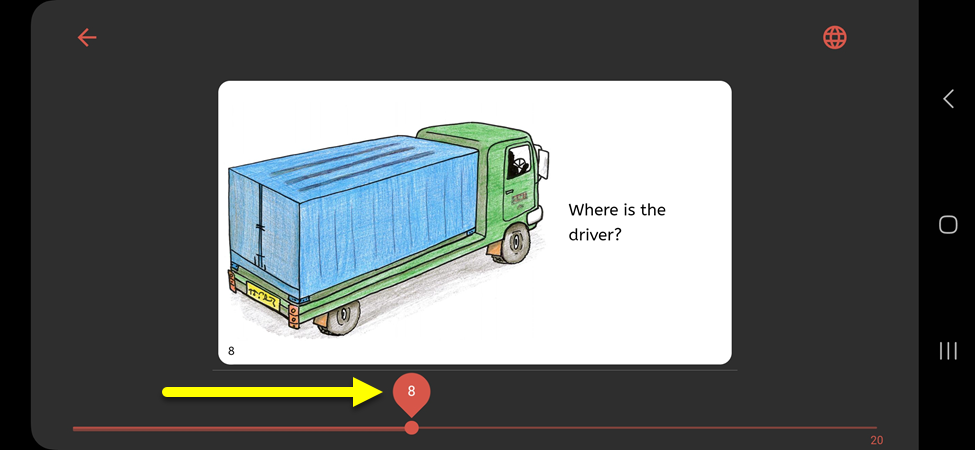
Change Book Language
If a book was written in multiple languages, you can change the language in Bloom Reader.
-
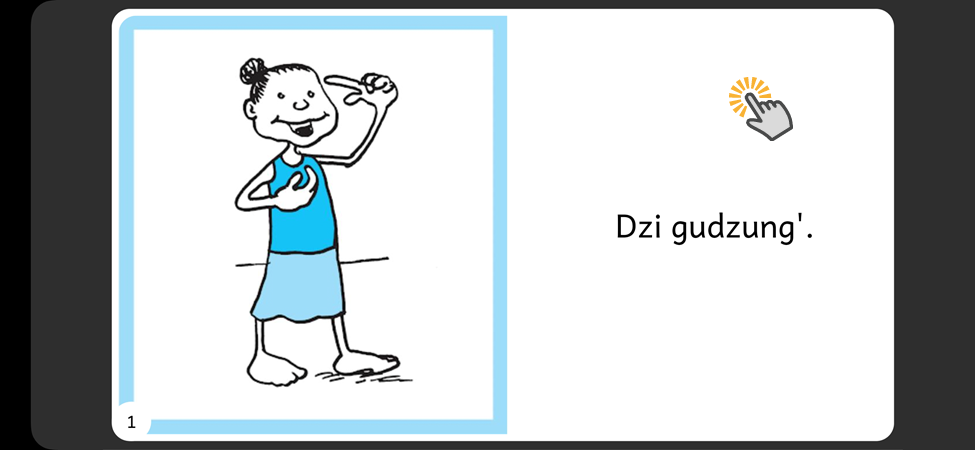
Tap on a page in the book:
-
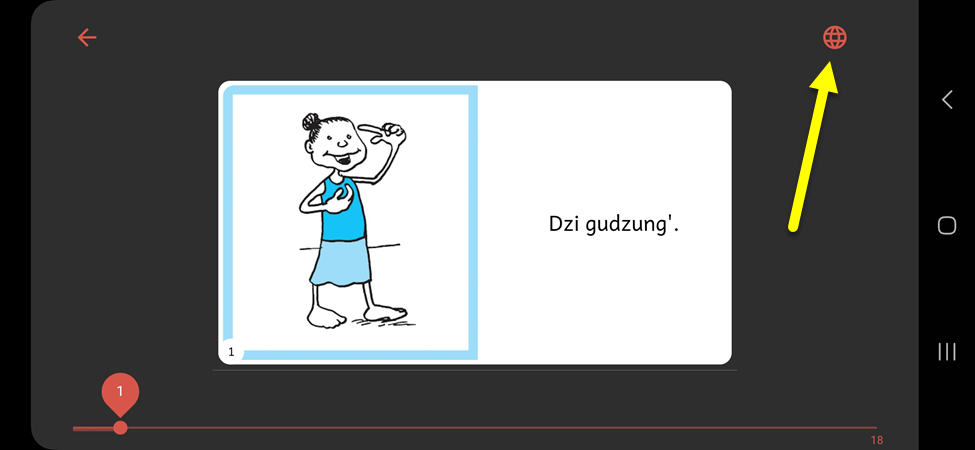
Tap the globe icon in the upper-right corner:
-
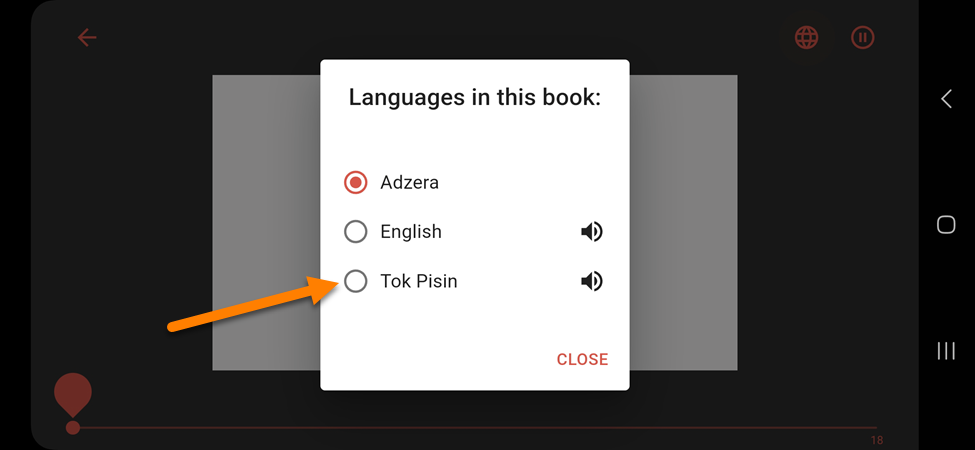
Tap on the language you want to use:
-
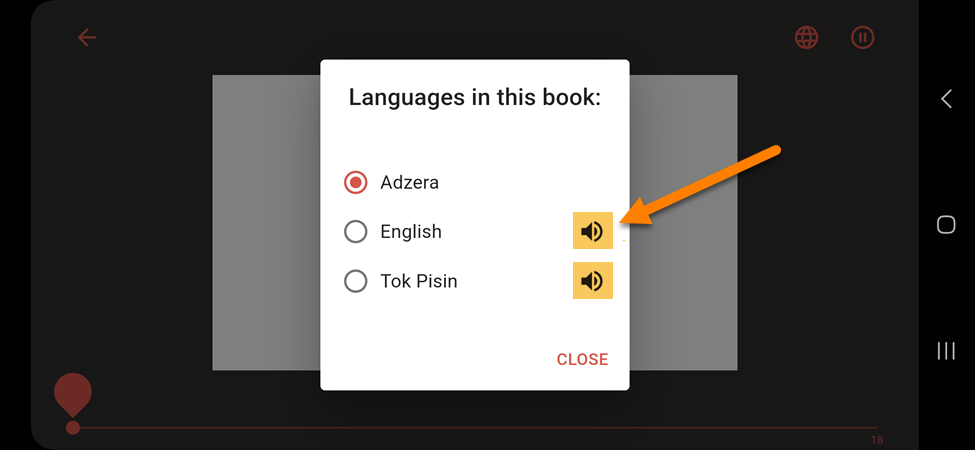
Note: Languages with a speaker icon are Talking Books (they have an audio recording of the book):
-
-
This book is now in the language you selected:
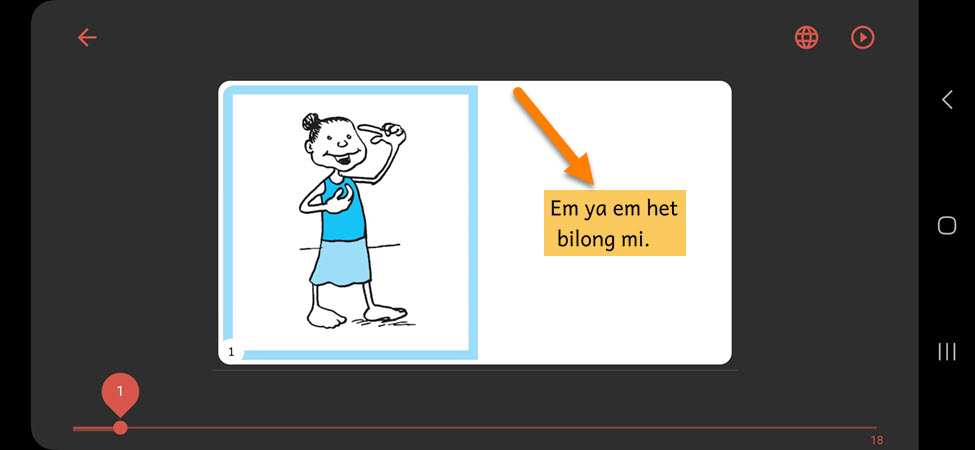
-
Tap on the page to return to fullscreen mode:
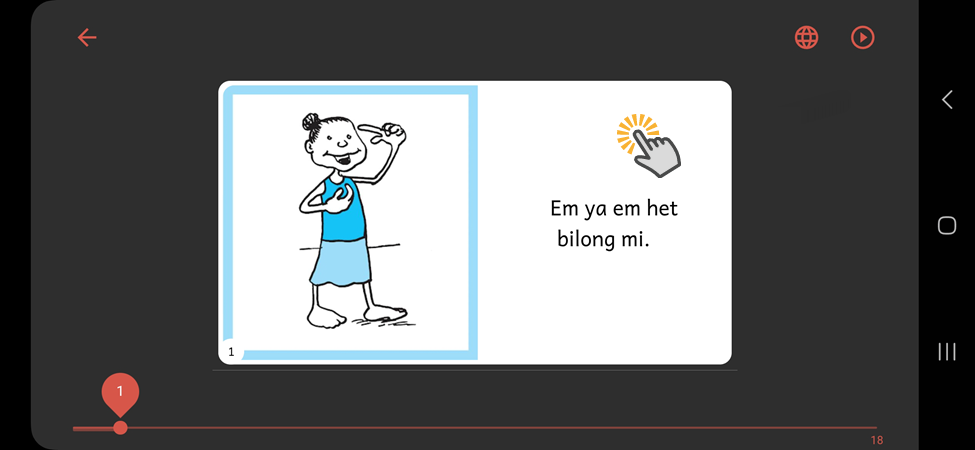
-
Continue reading the book in the language you selected:
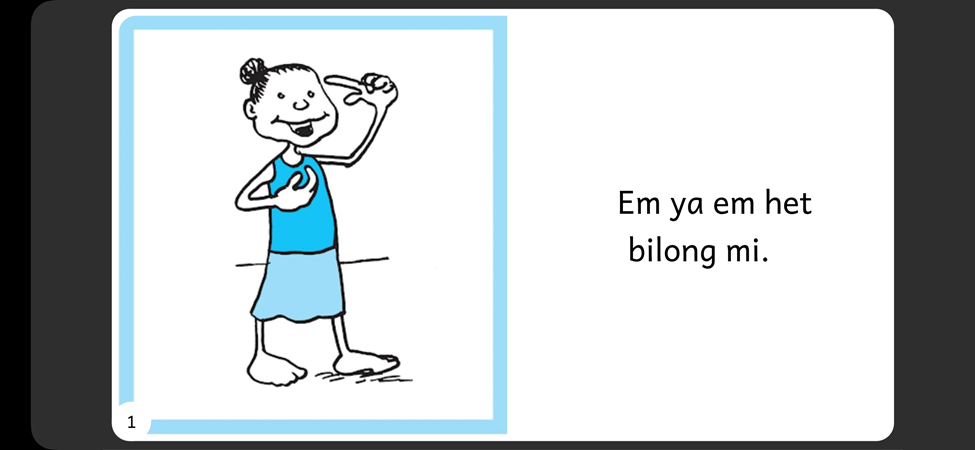
Exit Book
When you are done reading a book, you can exit back to the Bloom Reader home screen.
-
Tap on a page in the book:
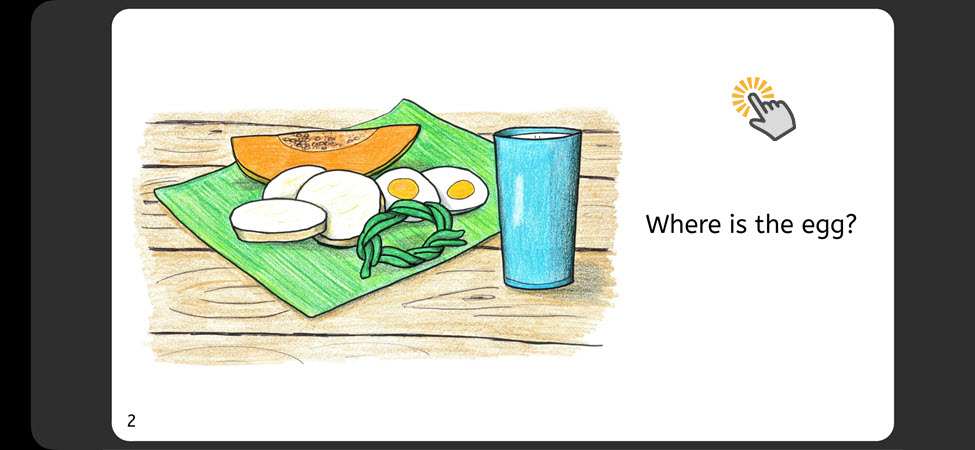
-
Tap the back button:
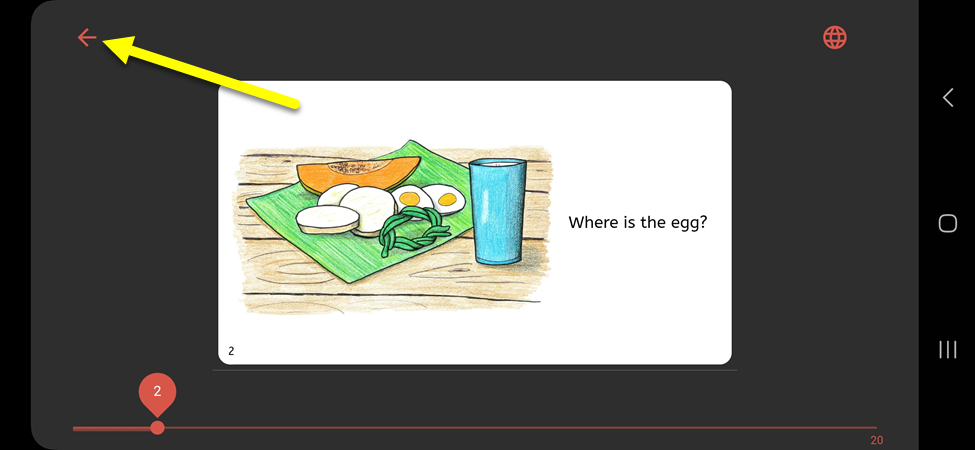
-
This will open the Bloom Reader home screen again: