Get Books in Bloom Reader
There are multiple ways to get books onto the Bloom Reader app. You can get books from:
- Bloom Editor
- Bloom Library from within Bloom Reader
- Bloom Library in a web browser
- A folder on your Android device
- Other sharing methods (WhatsApp, Dropbox, Gmail, etc.)
In addition, there are also ways to pre-load books into Bloom Reader. For details on doing this, see this article.
Get books from Bloom Editor
Bloom Editor gives three options to Publish to BloomPUB:
Options 2 and 3 from Bloom Editor work in tandem with the corresponding options available in Bloom Reader’s menu:
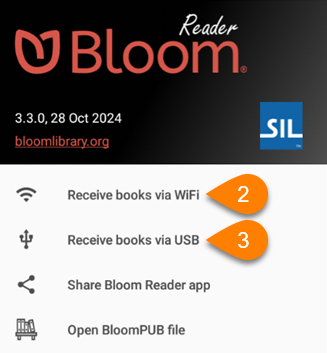
Save BloomPUB (to disk)
- In Bloom Editor, follow the instructions to Save BloomPUB File (to disk).
- Transfer the saved BloomPUB file to an Android device with Bloom Reader installed.
- Optional: Use the Other Sharing Method to share the BloomPUB file.
- Use the Open BloomPUB file option to read the BloomPUB in Bloom Reader.
Receive books via Wi-Fi
-
In Bloom Editor, follow the instructions to Share over Wi-Fi.
-
On your Android device, make sure that the device is connected to the same Wi-Fi network as the computer with Bloom Editor.
-
Open the Bloom Reader menu:
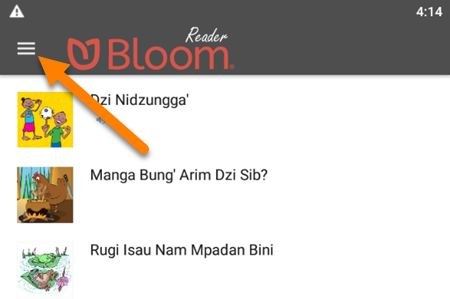
-
Tap
Receive books via WiFi: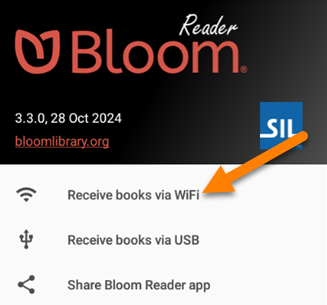
-
You will see a window that updates as the book is transferred:
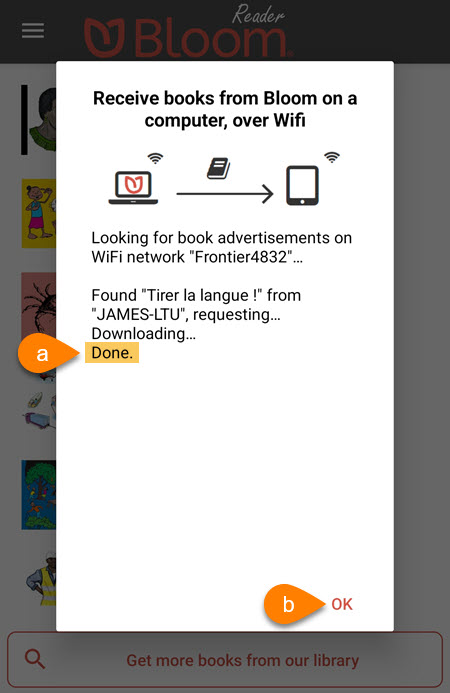
- When you see
Done - Click
OK
- When you see
-
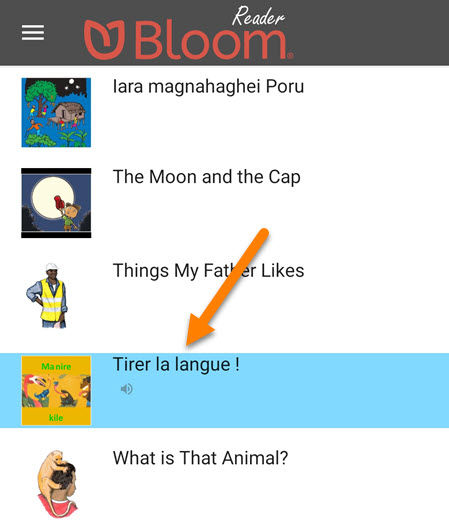
You should now be able to read the book in the Bloom Reader app:
Receive books via USB
-
In Bloom Editor, follow the instructions to Send over USB Cable.
-
On your Android device, make sure that:
- The device has the Bloom Reader app installed.
- The device is connected to the computer with a USB cable.
- The device is allowing MTP file transfer.
cautionNote: Some Android phones do not allow file transfer with a USB cable. If you are unable to transfer via USB, check the drivers on your computer, the settings on your phone, or try to transfer the BloomPUB file another way.
-
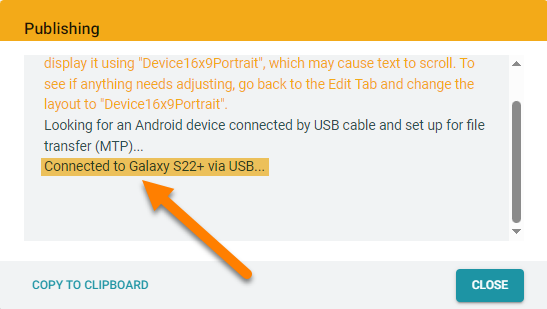
If the device is connected properly, you will see a notification in Bloom Editor that says: “Connected to XYZ-Device via USB”:
-
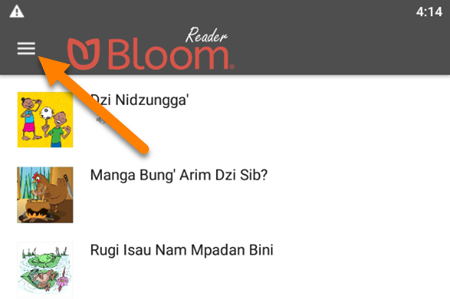
On your Android device, open the Bloom Reader menu:
-
Tap
Receive books via USB: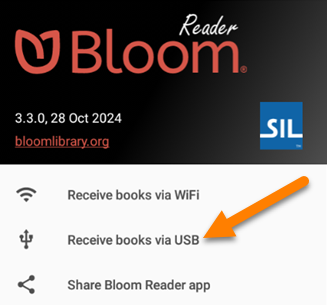
-
If you see this notification, tap
USE THIS FOLDER: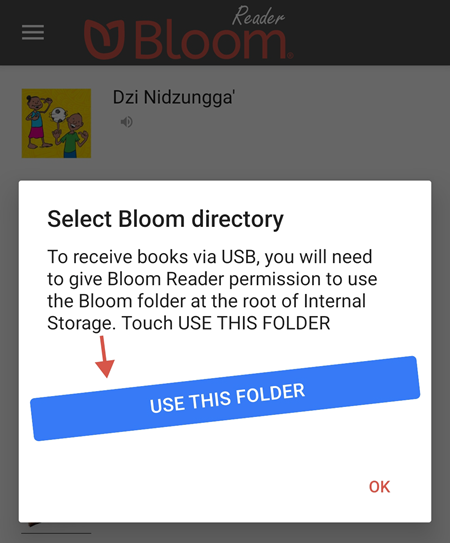
-
Bloom Reader will automatically open to the
Bloomfolder on the device.-
Tap
USE THIS FOLDER: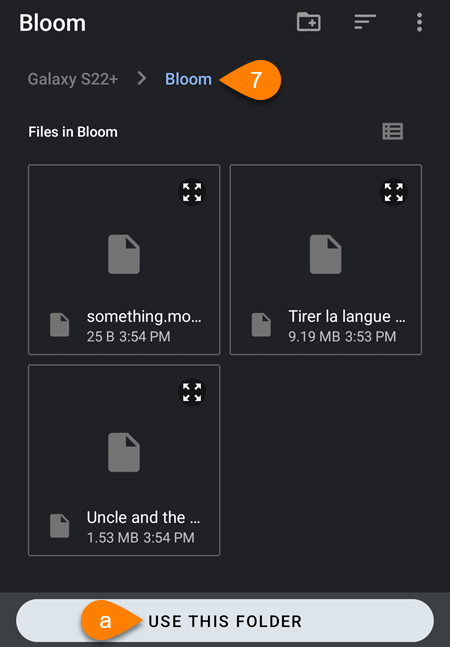
-
-
If you see this notification, tap
ALLOW: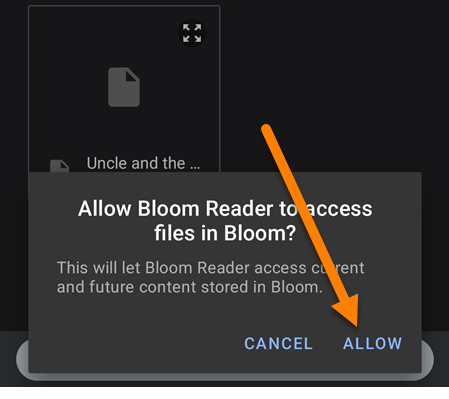
-
In Bloom Editor, you should also see a notification that says: “You can now read “Book-Name” in the Bloom Reader!
-
Click
Close: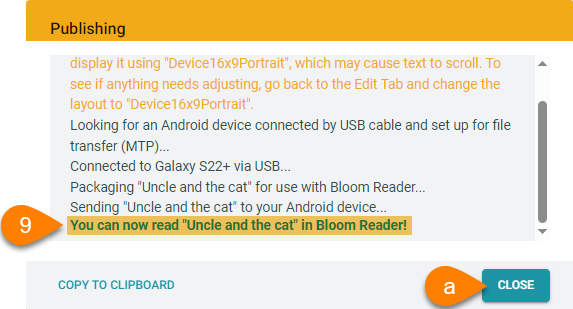
-
-
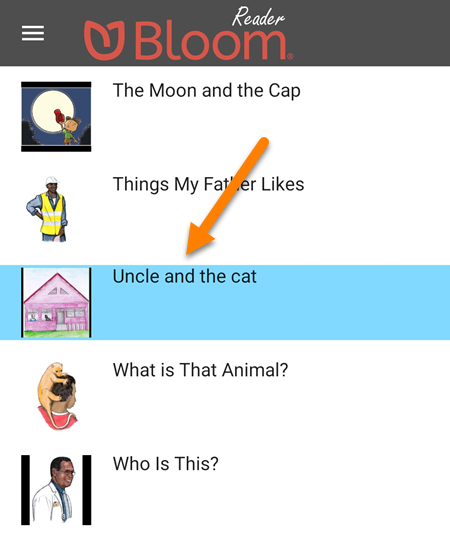
You should now be able to read the book in the Bloom Reader app:
Get books from Bloom Library from within Bloom Reader
You can download use Bloom Reader to download books directly from the Bloom Library.
-
At the bottom of the Bloom Reader home screen, tap
Get more books from our library: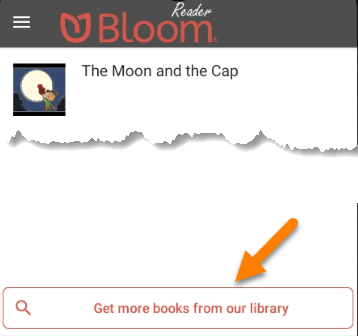
-
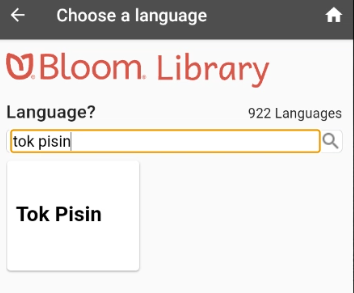
Type in the language you want to find books in:
-
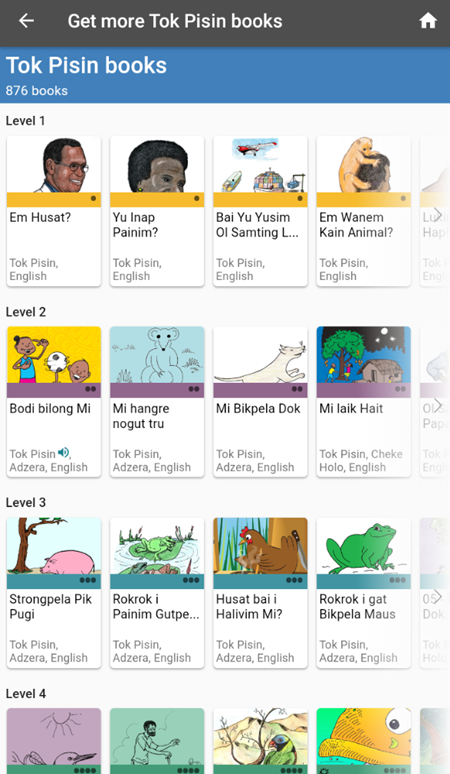
Books are shown in four different reading levels. To find a book, swipe the books in the level you are interested in:
-
Once your find a book you are interested in, tap on the book’s thumbnail to see the book details:
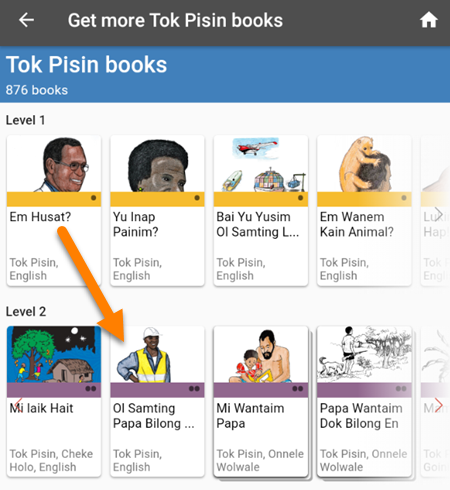
-
Tap the
DOWNLOADbutton to import the book into your Bloom Reader app: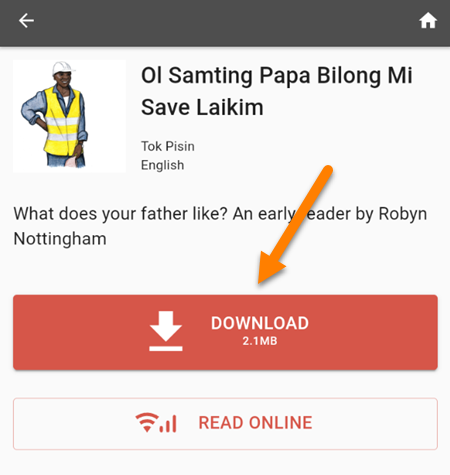
- If you want to preview the book online before downloading it, tap the
READ ONLINEbutton:
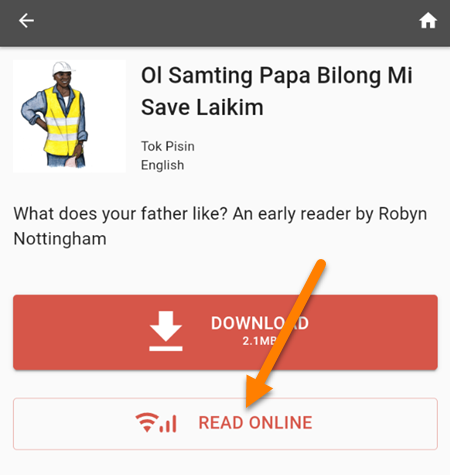
- If you want to preview the book online before downloading it, tap the
-
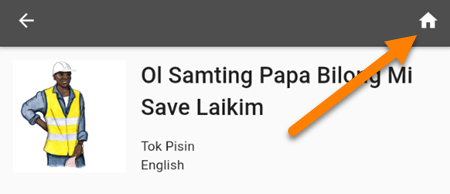
To return to the list of books in your selected language, tap the back arrow in the top-left corner of the screen:
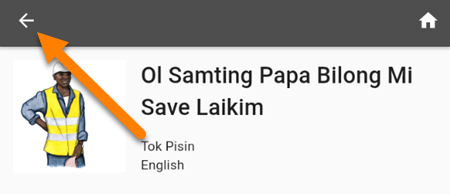
-
When you are finished downloading books, tap the home button in the top-right corner to return to the Bloom Reader homepage:
Get books from Bloom Library in a Web Browser
Getting books from Bloom Library within the Bloom Reader only provides one simple search filter: the language you are interested in. This works well when there are only a small number of books for the language of your interest.
If there are very many books for that particular language, then it is probably better to download books through a web browser on your device. By doing this, you can look for books by topic, by specialized bookshelves, and by searching for keywords.
Steps to download books from a web browser:
-
Open a web browser on your device.
-
Go to bloomlibrary.org
-
Navigate to the book that you want to download.
-
Once you find the book you want:
-
Tap the
READ OFFLINEbutton to download the book into Bloom Reader: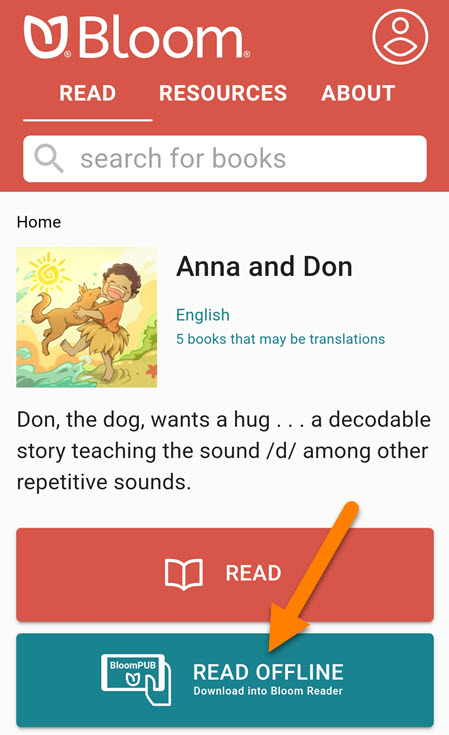
-
-
On some Android devices, you will be see an option to choose a destination folder to place the download.
tipHint: Download books to the Downloads folder.
-
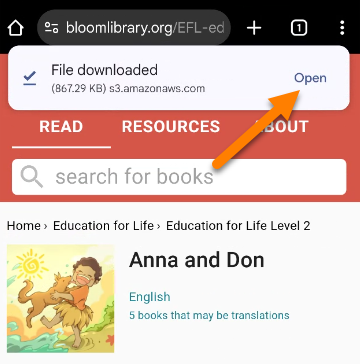
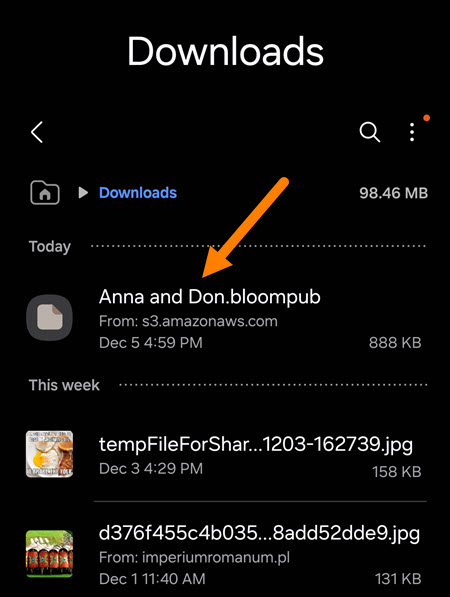
When the download completes, open the downloaded file:
-
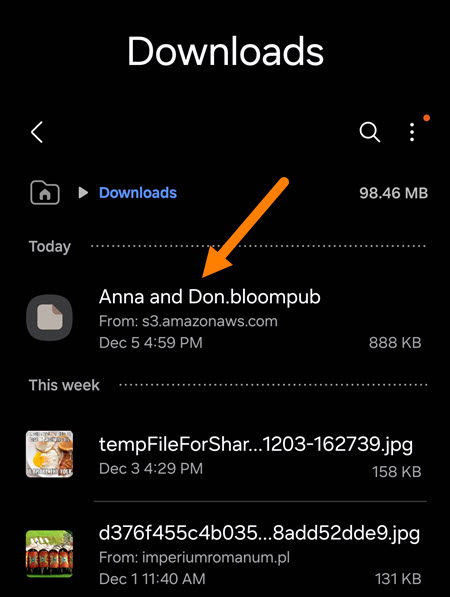
If you do not see a notification to open the downloaded file:
-
Open the file from your File Manager:
-
-
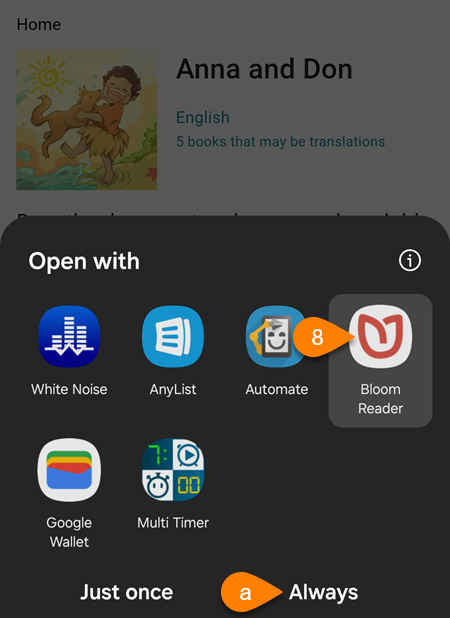
If your device asks which app to use to open the file, tap
Bloom Reader.-
Optional: Tap
Alwaysto make Bloom Reader the default for BloomPUB books.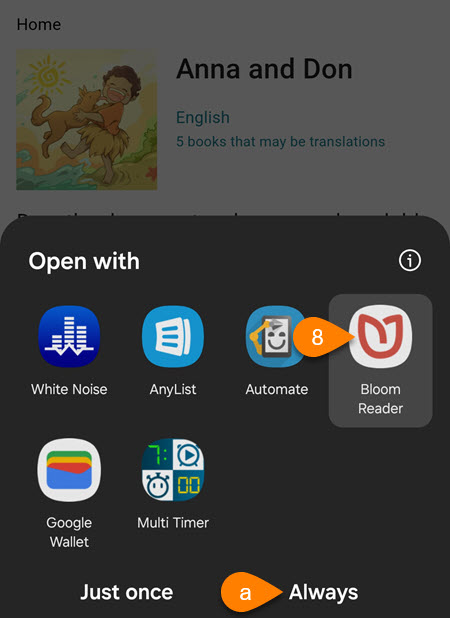
-
-
If the book still does not open, try the steps to open a file on your Android device.
Get books from a folder on your Android device
To import a book that is already on your device’s internal storage or an external SD card:
-
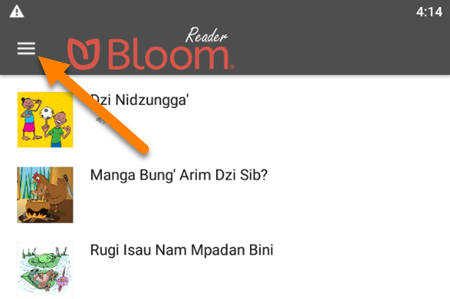
On your Android device, open the Bloom Reader menu:
-
Tap
Open BloomPUB file: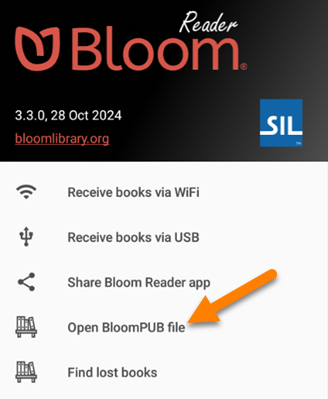
-
Navigate to the folder where the BloomPUB book is stored.
-
Tap on the BloomPUB file.
-
The book should automatically open in Bloom Reader.
Get books from other sharing methods (WhatsApp, Dropbox, Gmail, etc.)
If you have a BloomPUB file on computer or Android device, you can share it with others in a variety of ways. These include:
- Messaging apps: WhatsApp, Skype, Facebook Messenger, etc.
- File Sharing apps: DropBox, Google Drive, One Drive, etc.
- Email: Gmail, Outlook, Yahoo mail, etc.
- File Transfer: Bluetooth, Wi-Fi transfer, USB cable transfer, etc.
Steps to share a Bloom book with others:
- Generate/share a BloomPUB file. You can use either of these methods:
- Publish to BloomPUB from Bloom Editor.
- Share a Book in Bloom Reader.
- Send the BloomPUB book to an Android device using your preferred sharing method.
- Save the file to the Android device.
- Use the steps listed in Get books from a folder on your Android device to open the file in Bloom Reader.